Backlinks
Paginated, faceted lists of the resources a SPARQL query selects
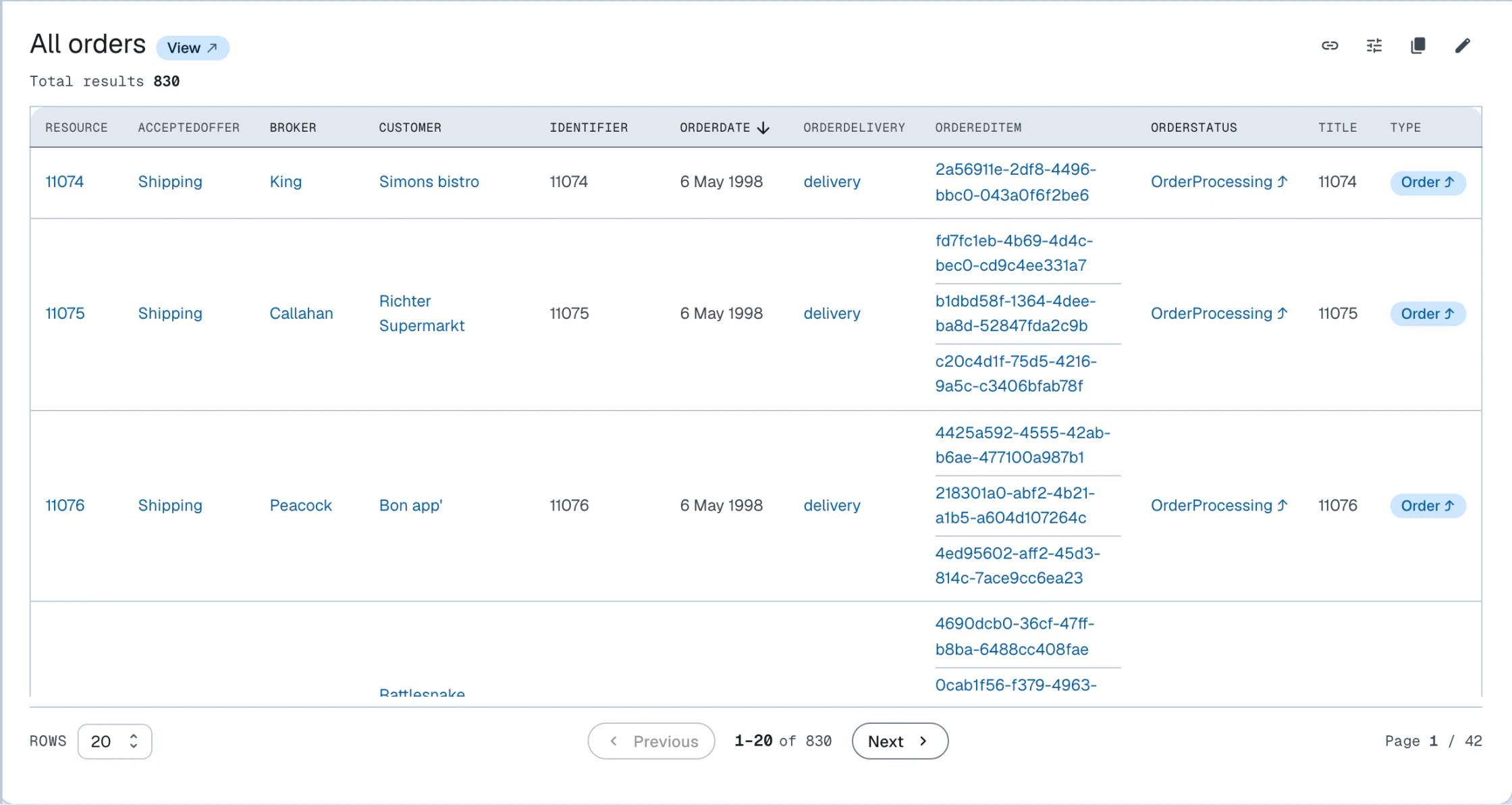
A view renders the results of a SPARQL SELECT query as an interactive, paginated and optionally ordered list.
The UI renders the descriptions of the resources selected by the result set, rather
than the tabular result itself.
That is achieved by on-the-fly SPARQL query rewriting: the SELECT is wrapped into
a DESCRIBE query; DESCRIBE reuses the same variables from the SELECT projection.
The first projected variable, plain or aliased as in (?s AS ?resource), names the resources the view lists. When it binds
values rather than resources, as in (YEAR(NOW()) AS ?year), there is nothing to describe and the block says the query lists no resources.
This will not work for all SELECT queries.
To render paginated lists of resources, traditional applications would normally have a dedicated API endpoint that supports pagination, ordering etc. In LinkedDataHub, views achieve the same functionality by simply building the SPARQL query string on the client-side. A view is therefore a client-side counterpart of a container: it produces a listing without a server-side endpoint.
A view is defined in one of two ways. A standalone view is a resource like a query or a chart:
it is stored in a document and placed on a page by an object block whose value is its URI.
A property-attached view is declared in the dataspace's ontology with ldh:view or ldh:inverseView. It is stored
in no document and is rendered on every resource of the property's domain or range,
as the
ontologies reference describes. Both kinds offer the same pagination,
faceted search and parallax navigation.
A view references its query and optionally fixes a layout mode:
<#select-categories-view> a ldh:View ;
    spin:query <#select-categories-query> ;
ac:mode <https://w3id.org/atomgraph/client#GridMode> .Source: categories.ttl · Live: /categories/
Views can be rendered in multiple layout modes: properties, list, grid, table, map, chart, and graph. They also show the total number of results and allow result ordering by property. In the table mode, columns can be sorted by clicking their headers; the sort order follows each column's datatype.
Projecting variables
Because the SELECT is rewritten into a DESCRIBE over its projected variables, a view can only render terms that the triplestore is
able to describe:
- Project resources (IRIs) that exist in the dataset — their labels, images and links are resolved from
each resource's own description. Projecting literals (a
?label, a?date, or any computed value) describes nothing, so the view renders empty. - Project IRIs that are stored locally. An IRI that only occurs as an object but is not itself described in the dataset — for example an external image URL — contributes no triples.
- Project a single entity type. Projecting several resource variables of different types blends their descriptions into one result set, which rarely renders coherently; select the one type you want to list and reach the related resources through their properties instead.
The query that drives the categories grid above projects the category resource, so the view renders the category documents:
SELECT DISTINCT ?category
WHERE {
    GRAPH ?doc {
        ?category
            a schema:ProductGroup ;
            schema:name ?categoryName
    }
}This query looks equivalent, but it projects the name literal instead of the category resource — so it describes nothing and renders an empty view:
SELECT DISTINCT ?categoryName
WHERE {
    GRAPH ?doc {
        ?category
            a schema:ProductGroup ;
            schema:name ?categoryName
    }
}Layout modes
View results are rendered in the view's own set of layout modes — properties, list, grid, table, map, chart, and graph — a larger set than the document layout modes.
Inline creation
A view attached to a property in the dataspace's ontology renders a Create button in its header, so a view can double as an entry point for the data it lists.
The class to construct is inferred from the attaching property: its rdfs:range for a forward ldh:view, its rdfs:domain for an inverse ldh:inverseView. A property whose range is not a named class — an owl:unionOf list, say — gets no button, because there is nothing to construct.
Where the new instance is stored is not declared anywhere. LinkedDataHub works it
out from the view's own results: a second query, derived from the view's SELECT pattern with LIMIT, OFFSET and ORDER BY removed, asks which containers hold the documents that describe the existing solutions.
A view is a projection and its rows are its solutions, so creating a row means making
a new solution appear in that projection — and the existing solutions already say
where their descriptions live.
- Exactly one container — the button renders and targets it.
- No container, because the result set is empty — no button. There is nothing to generalise from, so the first instance of a kind is created through its container the usual way.
- More than one container, because the results span several — no button. Nothing in the data says where a new row belongs, and deciding by majority would be placement nobody stated.
The question is put to the whole result set rather than to the page on screen, so
the destination cannot depend on which page the reader happens to be looking at. The
determined container is then checked for acl:Write access, which is why the button appears a moment after the rest of the view header;
a forward view also writes the linking triple into the current document, so it needs
write access there as well.
A view with ldh:showWhenEmpty set to false is hidden while its query returns no results — the
demo's property-attached views
use it so "Orders from this customer" only appears on customers that have orders.
<#select-products-view> a ldh:View ;
    spin:query <#select-products-query> ;
    ac:mode <https://w3id.org/atomgraph/client#TableMode> ;
ldh:showWhenEmpty false .Faceted search
Views provide faceted search in the toolbar at the top of the view, filtering the result set. The toolbar renders one dropdown pill per facetable property; opening a pill loads that property's values together with their result counts, and checking a value filters the results. Applying or removing a filter restarts paging from the first page.
By default the facets are generic and inferred from the triple patterns of the SPARQL
SELECT query used by the view. They can be customized using XSLT.
Parallax navigation
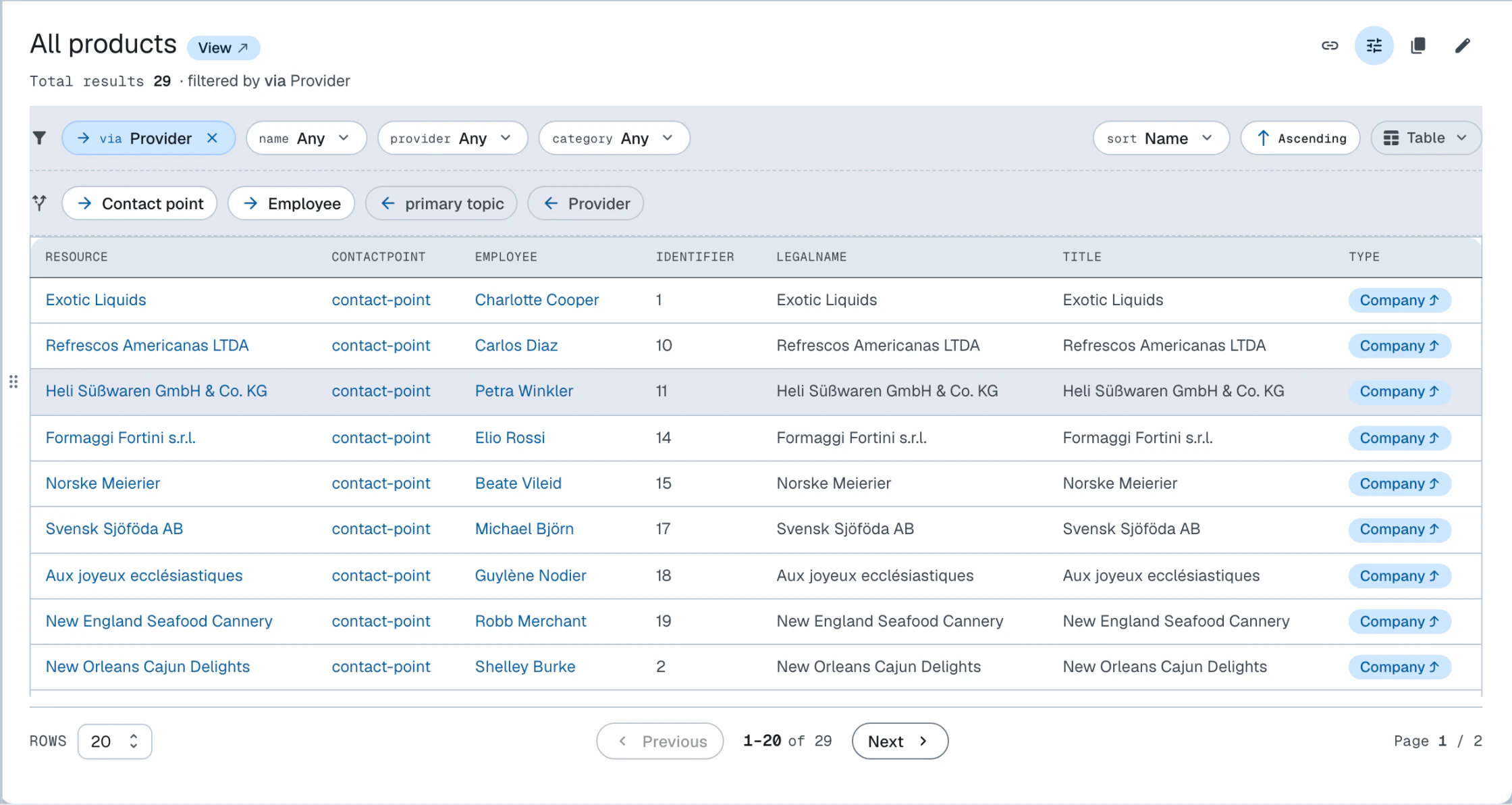
Parallax is an unusual navigation approach that suits graph data particularly well. It allows jumping from a result set to a related result set by following an RDF property. The available pivots render as a row of chips directly under the view toolbar, one chip per property linking the result set to the rest of the graph; the row stays hidden while there are no pivots. Parallax navigates in both directions: a chip with a forward arrow follows a property of the results onto its objects, a chip with a backward arrow follows a property pointing at the results onto its subjects. The pivots are discovered by querying the whole result set, so they cover results beyond the current page.
Clicking a chip pivots the view onto the related result set and restarts paging from the first page. The applied steps appear in the toolbar next to the facets as removable chips reading via (forward) or linked by (backward); removing one rewinds the view to that step. Parallax works in combination with faceted search which can be used to filter the initial result set.
For example, facets can be used to filter a set of products that belong to a certain category, and then parallax can be used to jump to a set of companies that provide those products, and then further on to a set of representatives of those companies.